ASP.NET WebAPI and k_BackingField in your JSON

If you’ve ever written AJAX-accessible WCF services and needed to return structured data to the client, it’s likely that you’ll have seen a fairly simple model object with automatic properties (i.e. get and set specified but their implementation left absent) received by the client with funky field names, all prefixed by k_BackingField. It doesn’t take much Googling to suss that marking your model object with a [DataContract] attribute and properties with [DataMember] attributes fixes things up and lets the serialiser make the correct field naming decisions for these properties.

You can get into a similar situation using the ApiController of the ASP.NET WebAPI, where you have the following setup:

  • A model class with one or more auto properties
  • A controller action method that returns an instance of the model, or a collection of the model
  • The model class is marked as [Serializable] to allow it to be stored in out-of-proc session state

That last part’s crucial – if you want to store an object in out-of-process session state (for example, using the session service or a SQL database then it needs to be marked as [Serializable] for persistence and re-hydration. The problem is that while an un-attributed model will be automatically serialised to nicely-named JSON fields, by attaching a [Serializable] attribute we end up with k_BackingField once again. Bugger.

I’ve found three options, with the last suggesting that this will not be a problem in future versions of the framework.

The first is to have a second model type used only for storage in session state, marked with Serializable as appropriate and perhaps with an operator to cast between it and the one to be returned to the client via WebAPI calls.

The second is to mark up your model class with a [DataContract] attribute, and then mark up the properties that need serialisation to JSON with [DataMember] attributes.

The last is to replace the default formatter with a Newtonsoft Json.NET one – which it seems will in the future be the default JSON formatter anyway. This formatter doesn’t render the backing field names into the resultant JSON, but instead just uses the property names – it also doesn’t suffer from the many limitations of the standard DataContractJsonSerializer.

So it’s a pretty rare situation that’s likely to go away on its own when WebAPI goes RTM, but at least it can be worked-around until then with relative ease.

Web Platform Installer hanging?

I had this issue first on my laptop and then my desktop, when variously installing or uninstalling Express editions of Visual Studio and in particular the ASP.NET MVC 2 components that I was using at the time. The installer would sit suspiciously inactively while uninstalling the MVC 2 tools, and could be left for over an hour without any progress being made.

In all situations my fix so far has been simple, though it’s always taken me an hour to remember it; temporarily disabling Kaspersky anti-virus (just about the only commonality between my Windows XP laptop and Windows 7 desktop) sees progress immediately resume on the installer. Clearly there’s some conflict between the activities of the two but so far it’s not failed to un-stick a stuck installer.

StringFormat.GenericDefault and StringFormat.GenericTypographic

Beware StringFormat.GenericDefault and StringFormat.GenericTypographic. While multiple calls to one or other property yield new .NET StringFormat instances, under the hood they’ll all refer to the same blob of unmanaged memory as a StringFormat’s really a wrapper around some GDI+ functions.

This means that you shouldn’t be using either property as a basis for a custom StringFormat without first making a call to .Clone. If you do modify either default StringFormat then the change is with you and, crucially, anything else using either property in the same app domain.

The alternative, and one that’s probably better anyway, is to new up a StringFormat with your settings fully-specified without leaning on the defaults. Just remember to Dispose it when you’re done.

Unwanted UserControl colour dithering over RDP

Remote Desktop can throw off rendering of .NET controls in annoying ways, and most of those come down to dithering and other colour-related issues. It can be especially annoying when you have a standard WinForms control that seems to render in one colour just fine, and a UserControl that should be rendering in exactly the same colour looking off by a few shades.

If you’ve encountered this then you’ve probably zoomed into a screenshot of the broken and working controls side-by-side and noticed that your UserControl is dithering the colour while the built-in control is a nice solid hue.

Left: Gainsboro over RDP. Right: Gainsboro over RDP?

This is down to Remote Desktop running as a terminal session with a lower colour depth than you might be used to on a local machine to improve performance. This means that when you set a colour on your control, it may not be exactly representable by the time it’s been rendered over the RDP session and so the colour will be dithered to give an approximation.

The key is that the built-in controls are using Graphics.GetNearestColor to map the requested colour to one that can be represented without dithering given the settings of the current terminal session. If you’re running locally in full-colour then it’ll just return the colour you asked for. If however you’re running over RDP it’ll give you the best attempt it can.

For example Gainsboro, a named system colour, is defined as #DCDCDC (or 220,220,220). Over a 24-bit-per-pixel RDP session you may find that the Graphics object supplied in your UserControl’s Paint events can only manage #D8DCD8 as a solid tone.

So how does a Label render nicely over RDP when its BackColor is set to Color.Gainsboro and your user control not? Simple – the colour you’re seeing isn’t Gainsboro at all – it’s just as close as the graphics context can manage given the current session’s settings. So if access over a terminal session is a use case you have to handle, consider using Graphics.GetNearestColor to translate your desired colour into something more manageable by the session.

Windows 8 Consumer Preview log #2

12:31 The app store

Tea in hand and after getting things running in a VM I’m taking a look at the app store and it’s pretty slick. Visually it’s quite appealing and I can imagine that the swipe gestures and panorama view will work well with a touch device. For us keyboard-and-mousers we’re left either with a barely-visible scroll-bar at the bottom of the screen or navigation by scroll wheel which I’m finding much nicer.

Apps are divided up into groups – the first thing you see are a few top-ranking items and links to their kin, then some highlights by category. Apps have a rating and price displayed, and reviews are accessible on their respective individual pages.

There’s also a little counter at the top-right showing how many updates are available for your already-installed apps. However, when you go into this all it does it tell you which apps have updates available and not anything about the nature of the update. While this is presumably to keep the user experience simpler and cleaner, I doubt it couldn’t be squeezed in somewhere. The counter is also displayed on the app tile when not in use.

Let’s try installing Physamajig for some light entertainment and to see what the process is like. First off we get the app’s details page – the app’s free, but it still shows ‘Buy’ and ‘Try’ buttons. I’ll assume that Buy is what I want. By doing so, I’m asked for my Microsoft account credentials – remember, app purchases/settings are associated with a Live account.

After that, the ‘updates’ counter turns into an ‘Installing Physamajig’ label and after a few seconds it’s all done. Painless! Interestingly I didn’t get prompted where I wanted the app to be saved on my local machine – this’ll become a problem over time if you’ve an SSD. Presumably there’s a setting somewhere around here for that…

Once installed the app appears on the Start tiles list for use – all very straightforward.

1:36pm Having a bash at installing VS2011 Developer Preview

VS2011 will be the Visual Studio release for creating apps that target Windows 8’s Metro UI. Hopping into the Desktop app then firing up IE10 I’ve downloaded and kicked-off an install of VS2011 Developer Preview in the hope that there’s sufficient supporting functionality in the Windows 8 CP to let it install. As it stands, VirtualBox is proving to be a massive pain in the behind again by just hanging periodically – even a reinstall with different VM settings didn’t take care of this the first time and it’s unclear where the issue resides.

While that’s happening a brief explore around the Desktop mode suggests that it’s essentially business as usual just with the key absence of a Start button and a My Computer icon on the desktop. Task Manager’s had a bit of visual work done to it and has slightly more detailed telemetry as a result. The processes list now groups processes by type by default, and both that and the App History tab highlight resource usage both numerically and by using colour to indicate relative peaks in usage between processes.

Dragging to dock a window to one side or other of the screen still works, and the desktop context menu still allows access to change screen resolution and settings (something that I couldn’t easily find a way of doing in the Metro UI). The notification area still exists, with the Action Centre flag still inexplicably set to always show by default even when there’s nothing to be acted upon. It’s clear that there’s work to be done in the desktop side of the app – for example, right-clicking the Taskbar still gives a settings dialog that talks about Aero Peek which at present no longer functions as holding the mouse at the bottom-right of the screen (where the ‘Show Desktop’ button notionally lives) brings up the Charms bar instead. Still, pinning items continues to work which may be sufficient in the absence of the Start button.

Come to think of it, the absence of a Start button and menu in the desktop mode (and styled in line with the desktop app) is actually quite an annoyance, as the Desktop and Metro environments neither look alike nor act alike but one’s forced to go from one to the other to start new programs. It’s especially jarring when starting the Windows Explorer ‘app’ from the Metro UI as it simply fires up the Desktop app and shows the Explorer window there.

Equally usability seems to have taken something of a step backwards if you’re not using a touch-enabled device with regards to very basic operations on the UI. For example, there’s no way I’ve found to close a Metro app from the app itself using only the mouse. Alt-F4 seems still to do the trick, and you’re tricked for a second into thinking that the running-apps slider accessible by hovering the mouse in the top-left corner and the moving down the edge of the screen might do it but it never shows the current app in that list.

Equally, the only way I’ve so far found to get back out into the Metro Start list is by hitting the Windows key on the keyboard – that’s fine once you know to do it, but in the CP at least there’s bugger all to suggest that’s the route back. Things that were once achievable using only one input method now seem to need both.

There’s also no clear indication of which apps are running at a given time – you can see what’s running in Metro by using the left-side hovery-move-slowly-down-the-screen tactic (presumably there’s a gesture shortcut for that as the region you’ve to touch is relatively tiny) but that won’t show you what’s running in the Desktop. To do that you have to go into the Desktop and look at the Taskbar as per usual, though again from the Desktop you can’t see the Metro apps that are running short of diving back out into Metro-mode.

The Start menu’s text search continues to work although it’s not clear that it will do so until you try – hitting the Windows key to get you to the Metro start menu and then just typing the name of an app continues to work which is good as it became a natural way to use the Start menu in Windows 7. Again though you’re faced with odd visual context switches if you’re in the Desktop app and want to launch a Desktop app, since you’re forced through the Metro UI for no good usability reason. You also lose all context of what you were doing when you started bringing the new app up because Metro takes over the whole screen.

I’m really trying to be open-minded about Metro as it’s the biggest UI design change MS has pushed on users since Windows 95. However, the story about how it interoperates with the Desktop just doesn’t feel right yet – I feel that I’m having to re-learn how to do things I already thought I knew how to do just for the sake of it, as so far Metro isn’t making it any quicker or easier to use my machine or access my applications.

Visual Studio’s still installing away in the background – clearly time for more tea.

Windows 8 Consumer Preview log

I’ve got a day off, I’ve got an ISO of the Windows 8 Consumer Preview and a virtual machine setup and a plan to install one on t’other and log findings.

The plan’s to kick-off at 10am and go through a full install in the VM, noting that I only have access to a keyboard and mouse anyway so won’t ever be able to play about with the touch parts of the interface.

Vamanos!

10.00am Disc (virtually) in, VM powered on, and we’re off

Creepy looking origami fish picture aaand – we’re down after 30 seconds:

So VirtualPC was a poor choice...

So, immediately I regret not having looked about at a compatibility list – it seems the CP won’t run in Microsoft’s own VirtualPC environment. Still, nice to see the new blue-screen giving a light-hearted slant to ‘your machine’s arseholed’ with the frowny face. Let’s download VirtualBox. In the background I’m now also downloading the 64-bit version of the OS as I’ve got 64-bit hardware, having downloaded the 32-bit version of VirtualPC’s benefit earlier. With 3GB of RAM allocated (out of 6GB on the host) and a 40gig solid virtual hard disk I’m hoping I’m giving it the best shot to shine that I can given my hardware. Time for another cuppa:
In the meantime I also found this walkthrough for a Windows 8 install on a VirtualBox VM which will hopefully avoid a repeat performance of Mister Frowny Face.

 10.30am Attempt #1 with VirtualBox

After some swearing at an astonishingly sluggish VirtualBox VM manager app, I’ve configured a VM to roughly the following specs:

  • 3GB RAM
  • 256MB video memory, 2D and 3D acceleration enabled
  • 2 CPUs exposed of my Core2 Duo
  • 40GB pre-allocated virtual hard disk

With 30 minutes still to go on the 64-bit ISO download, I’ll fire it up with the 32-bit ISO just to make sure that this has any chance in hell of working. And success!
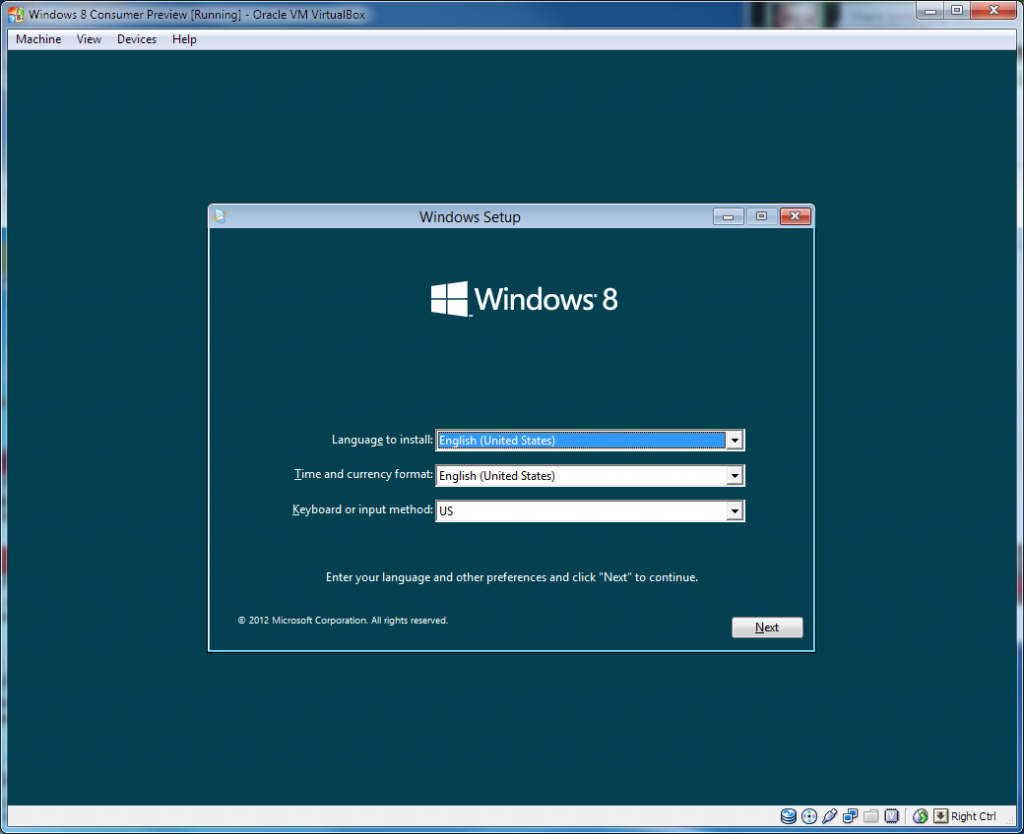
Now just to wait for its 64-bit cousin to finish and we’re all ready to go. Again.

11:00am Installation take #2

We’re off again, and after a couple of minutes and noticing that ‘English (UK)’ isn’t yet a supported language and allowing setup to deal with a 40gig unpartitioned, unformatted virtual disk it’s underway.

11:10am Er…

After 8 minutes of fervent activity and a couple of reboots things were looking promising, but the VM’s now stuck with a picture of the origami fish and very little else happening. Perhaps a forced restart will help.

11:14am No frowny face this time, but still…

Another blue screen, though this time it’s that of the recovery environment telling me that previous startups didn’t work.
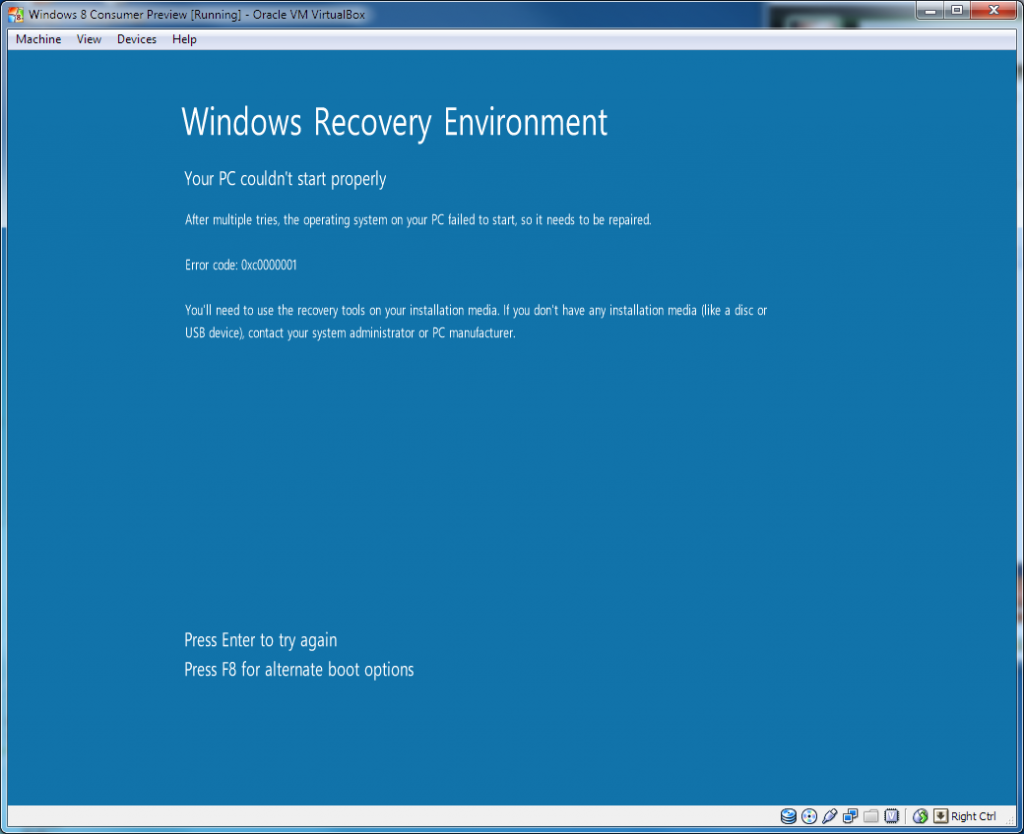
Heartily disregarding the message, I plough on.

11:16am We’re nearly there!

Background colour picked, and machine name assigned. Express settings configuration picked and an email address supplied. Prompted to supply some extra security information for my Live account which I thought I’d already done but there we go – a mobile phone number and a security answer.

11:19am Metro ahoy!

So a 20 minute install from an ISO. I’m met with Metro, I seem to have been signed into Messenger automatically and a tile’s telling me that I’ve got a new email – splendid.

11:25am I have no idea what I’m doing

While pretty, I had no idea what the hell to do with the Metro tiles start screen. After accidentally starting the calendar app I couldn’t find my way back out of it, and only by chance did I hit the Start button which at least got me back to the tiles (though with no idea if the calendar’s still running).

Importantly, there’s no help link that I could easily see on the tiles page, and the only way I got there was to right-click on something that wasn’t a tile which gave a little blue bar at the bottom of the screen, from which I could get to All Apps (which seems to be a flattened start menu) and Help and Support.

Even then, Help and Support opened on the Desktop (which doesn’t have a start button, though in pretty much every other respect it looks like Windows 7). A quick browse through the docs gives some hints on how to get around though it’s clear that the tile interface hasn’t been designed for keyboard and mouse users – the alt-tab equivalent is a 5x5ish pixel region at the top-left of the screen that shows a preview of the next app in the list (though trying to click on the picture will just dismiss the dialog – you’re to click blind). Similarly the bottom-right region will yield a list of ‘charms’ from which you can get to the start menu, search and control panel.

Certainly the Metro interface is very fluid – transitions between apps are animated elegantly and that movement gives you an idea of what’s happening. And as I’m playing about trying to make VirtualBox pull the VM back from being full-screen it crashes, fantastic. VM rebooted and hangs on startup, rebooted again and we’re running.

11:43am Wait, my Hotmail password is now my Windows account password?

One of the features of Windows 8 is an extension of something we’ve had in the corporate world for years – a roaming profile. When joined to a domain certain features of your configuration follow you between machines. In Windows 8 that’s taken a step further with apps you’ve bought and UI configuration following you between machines anywhere in the world rather than just within the same network. However to power this your Live account is linked to your Windows account, which means that I now need to remember my Hotmail password to log back into the machine.

For a lot of people this won’t be a problem, but as I use a password generator tool to produce random per-site passwords my Hotmail account password is nearly 20 alphanumeric and symbolic characters – impossible to remember. Equally annoying is that now the security of my Hotmail account is linked inextricably to the security of my Windows machine – if one is compromised, chances are the other’s up for grabs too. Perhaps the Settings charm can help me here…

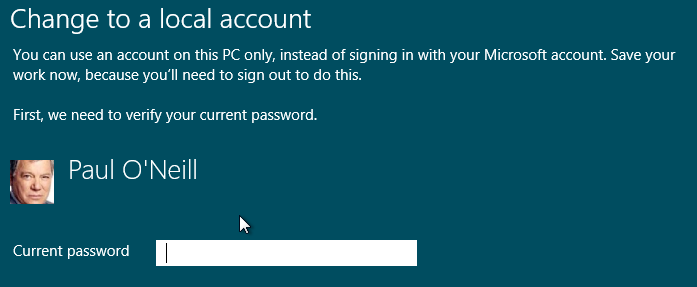
Well while this looks promising, the ability to turn my Live-linked account into a normal local account, it seems that the page can’t handle something about my password as it’s having none of it. Instead I’ll create a standard local account and then log into that, I reckon. Once done, I can still configure the email account to sync to my Hotmail address though the email tile no longer seems to show notifications.

12:04pm: Browsing the in-built apps

The default start menu gives you a few Metro apps up-front. We’ve got a bit mail tile that should (although no longer seems to) notify when there’s new email, a Messaging app that I am unable to test as it’s claiming I’m both offline and signed into Messenger at the same time and a calendar app that’s actually quite a neat little full-screen planner.

The weather app is location-aware and figured out I was in Edinburgh without any input, and once it’s been opened it updates its Start tile with the latest weather info. The finance app seems like a very US-centric placeholder and didn’t customise itself upon my location but presumably that’ll be expanded before it actually gets used for real. As with the weather app, once it’s been opened its tile updates with stock quotes.

Internet Explorer has two modes of operation – when started from the Desktop app it’s familiar IE and when started from the Start menu it’s a Metro-styled chromeless affair with bigger buttons and address bar regions for easier use with a touchscreen.

The Xbox Live app at the minute at least requires that you’re using a Microsoft account (i.e. that your Live account is linked to your machine login) rather than a local account which is an annoyance that will hopefully be resolved.

Windows Explorer opens on the Desktop, which is a visually jarring experience and I’d be hopeful of a Metro-styled cut-down Explorer for simpler file operations like copying the odd file or the occasional rename.

Time for more tea, and to have a look at the Store app.

Entity Framework knows how to deal with the null coalescing operator

A quick discovery of something that probably shouldn’t have come as a surprise, but Entity Framework v4 seems capable of turning

obj.ColumnOne ?? obj.ColumnTwo

into something akin to

CASE WHEN ColumnOne IS NOT NULL THEN ColumnOne ELSE ColumnTwo END

without much difficulty, at least against Oracle and using DotConnect for Oracle as the interface. Somewhat disappointingly it won’t currently turn that ?? into an equivalent NVL upon which one might have previously created a function-based index, but at least the outcome is equivalent making the LINQ query on the .NET end substantially tidier.

It’s one of many things that I’ve struggled with when getting into Entity Framework as previously I’ve had to write all of the database queries myself, either as SQL or PL/SQL table functions. It can sometimes put you at a disadvantage, as you more readily have in the back of your mind the question ‘How’s it going to turn this into a query?’ which, at least at the initial development stages is pretty much an irrelevance.

What I should be doing is trusting that EF will figure out how my LINQ expression maps to equivalent SQL, and then test that the outputs match my expectations. However, when you’ve spent so long with your head at the database level, letting go can be difficult to do and I still find myself feeling apprehensive that once EF’s mediating my database accesses I’m just a little less in control than I was before. That leads to situations like the above – where one can sometimes slip back just a half step and, while acknowledging that the black box between you and the database probably knows what it’s doing, you wrongly think that you should help it on its way by keeping queries through it nice and straightforward.

The power, of course, is that things don’t have to be straightforward, and that you get to worry about the logic of your query rather than its implementation.

Raspberry Pi goes on sale, but not without issue

The Raspberry Pi, the $35 single-board computer intended to get kids coding again has seen unprecedented demand since the 6am announcement that it had gone on sale through big-name partners Farnell and RS Components.

Indeed the foundation’s Twitter account has been inundated with complaints from irate would-be buyers finding first that the Farnell site has collapsed under the traffic (and had, 50 minutes after launch sold-out anyway) and reports that RS Components aren’t actually putting the thing on sale until the end of the week, seemingly counter to the foundation’s expectations.

It’s regrettable that Farnell couldn’t keep their site up, though both are primarily regarded as resellers for industry (indeed, we used both at my previous job extensively for electronics components, thermocouples and so on). Even when I was using them professionally either’s site being up and down like a whore’s knickers wasn’t exactly out of the ordinary but what’s annoying this time around, and more so than the TouchPad fire sale, is that both sites are now making the foundation look bad.

It’s extremely early days, though it seems that expectations between the foundation and their new partners weren’t quite aligned. All parties seem to be getting a lot of flak on social media networks, though in the foundation’s defence there probably wasn’t much they could do to get this right either way. Their alternative was to build their own ordering system, replete with payment processing, and a worldwide distribution network (or do it themselves at considerable cost) and then hope that the tsunami of F5-wielding punters wouldn’t floor the site. At least the approach they took had a higher probability of success.

It’s a shame that such big-name players as RS and Farnell are adding a bitter note to the start of what’s an incredible project. Still, it’s unlikely to dent anyone’s enthusiam for the project longer term – people just aren’t well equipped for dealing with disappointment it seems. Especially when one looks at the UK’s current Twitter trends – in the top four: RaspberryPi, Farnell, RS Components and DDoS.

Piping email to a script with cPanel – redux

After some further experimentation, I believe I’ve got a more robust method for suppressing output from a PHP script that’s the end-point of a piped email address.

Previously, I structured my PHP file with a shebang line similar to the following:

#!/usr/bin/php -q
<?php
// Code goes here
?>

However, any die, echo or syntax-errors yielded by execution would cause output to be generated which the mailer would interpret as a failure. Given that you can cause output in a bunch of different ways (and that it can be hard to track down), let’s be a bit cleverer.

First off, make your processing script as before – read from STDIN, parse the email message and then do something with it. You’ll still need the shebang line though can leave out the -q this time.

Next, create a new script, this time with a shebang pointing us to Bash. For example:

#!/bin/bash
...

This script will simply run the PHP script, but redirect STDERR to STDOUT, and then STDOUT to /dev/null thus yielding no output at all regardless of what the script gets up to. By way of example:

#!/bin/bash
/home/<username>/processingscript.php > /dev/null 2>&1

The magic’s in the redirect to /dev/null, and then the redirect of STDERR (2) to STDOUT (1) at the end. Our PHP script will still have access to STDIN (where the raw email content’s waiting) because it inherits the descriptor from the script calling it (in this case, our Bash script).

We can test this by writing a very simple test script that’ll just dump the most recently received email to disk and then die so that we can both prove that it ran and that it didn’t cause an email bounce:

#!/usr/bin/php
<?php
   // Paste the mailRead method from the previous blog post in here

   file_put_contents('/home/<username>/output.txt', mailRead(-1));
   die('Ordinarily this die would cause a bounce...');
?>

Fire an email to your forwarded address and give it a minute. You should find a file output.txt with the raw contents of the email just received, and no bounce returned to the sender.

Make sure that both your Bash file and the PHP processing script are both marked as executable.

Piping email to a script with cPanel

Note: Found a better solution to some of the annoyances below detailed in a later blog-post.

I recently found myself wanting to read email from an address, parse it and act upon it giving me an entrypoint to a very simple API from my Nokia e71’s native email facilities. My host uses cPanel for administration, and it helpfully has the ability to pipe mail destined for an email address to an arbitrary script file.

Given it took a little effort, a few different web resources and some annoyances I’ve documented the steps here.

Setup your processing script

Your processing script can be anything that can be run by the shell on your host. My application required a PHP end-point so these instructions are for a PHP script.

First off, create a new PHP file. Unlike PHP files you’ve created to be accessed from the web, we’ll need a shebang line at the top pointing to the executable to be used to process the script. On my host, that makes the very initial script the following:

#!/usr/bin/php -q
<?php
?>

Notice that -q? By default, invoking the PHP binary will render HTTP headers to the output stream. As we’re going to see shortly, any output generated by your processing script will be seen as a delivery failure by the mailer so we want to avoid shoving those headers into the output. The -q switch turns off those headers.

The mailer will be supplying the full text of the email (replete with headers) to STDIN – we can read in the email by reading from php://stdin using fopen and the standard PHP file access functions. Handily a chap called webignition already produced a function to process STDIN and yield us a string in a forum post.

However, that string’s pretty much just raw protocol – it’d be easier if we could access the email’s contents in a more structured way. Taking my cue from a Stack Overflow post I decided upon using the Plancake email parser class available in this Git repo. Using the class is straightforward – we construct a PlancakeEmailParser object passing in the string yielded by mailRead. This exposes the contents of the email through accessor methods on the object.

So our recipe so far:

  • Create a PHP script with a shebang line that points to the PHP binary and contains the -q switch to suppress HTTP header output
  • Read the contents of STDIN and pass it as a string to the constructor of PlancakeEmailParser giving us structured email data
  • <Do something with the structured email data>

That last bit’s on you.

Setup forwarding on your desired address

Let’s say that the address you want to use is api@example.com.

  • Log into cPanel and fire up the Forwarders page in the Mail group
  • Hit ‘Add Forwarder’ – you’ll be taken to the Add New Forwarder page
  • Enter the email account name in the ‘Address to forward’ box (and pick the correct domain if your cPanel’s set up to manage multiple)
  • Click the Advanced Options link to expand the form out
  • Pick the ‘Pipe to a program’ radio button and, in the text field next to it, enter the path (relative to your home directory) of the processing script created from the above steps
  • Click ‘Add forwarder’ – your new forwarder should be created

Now any email sent to the address you specified will be pumped to the script just created. We’re then free to do any processing we want.

Gotchas and things to check when it doesn’t work

There’re a lot of things that can go wrong with this – some of the ones I encountered are below.

All script output is considered to be an error
Anything your script outputs is considered by the mailer to be a problem and will cause the email to bounce back to the sender. While it might seem like you’re not outputting anything, the following non-exhaustive list are some examples:

  • Anything you output using PHP’s echo method (or equivalent)
  • Any ‘die’ statements that are called
  • Any HTTP headers (hence our using the -q switch)
  • Any syntax errors output by the PHP binary when it’s fired up
  • Any stray whitespace before the opening <?php tag or after the closing ?> tag

That last one caused some significant issues for me. By any whitespace I mean any whitespace – and not just in the PHP file that’s the target of your pipe but in anything it subsequently includes through require_once or similar.

One way to test this is to run your script on the command-line. If it outputs anything at all you’ll see it in the console – perhaps as stray whitespace, perhaps as more obvious parser errors.

Failing to read all of STDIN may be interpreted as an error too
This one I wasn’t expecting but failing to read all of STDIN may also be interpreted as an error state. The easiest way to handle this is to simply read the whole damned thing.

Debugging

Given that pretty much anything that your script does wrong will cause a bounce, and that the bounce may or may not contain useful information, it’s useful to split out the bulk of your processing logic into a separate file and have your endpoint responsible only for parsing STDIN into a structured email and calling your actual processing logic. Then you can have a test harness around your actual processing logic (perhaps a simple webpage that lets you paste in an email) and test it offline, without having to try to diagnose issues solely from having emails bounce.

It can also be handy to store all incoming emails in a file or database table for a short period of time to help you diagnose issues in conjunction with your test harness. If you get a bounce during development, you can dig up the email that caused the problem and fire it into your test harness.