


I’ve got a day off, I’ve got an ISO of the Windows 8 Consumer Preview and a virtual machine setup and a plan to install one on t’other and log findings.
The plan’s to kick-off at 10am and go through a full install in the VM, noting that I only have access to a keyboard and mouse anyway so won’t ever be able to play about with the touch parts of the interface.
Vamanos!
10.00am Disc (virtually) in, VM powered on, and we’re off
Creepy looking origami fish picture aaand – we’re down after 30 seconds:

So VirtualPC was a poor choice...
So, immediately I regret not having looked about at a compatibility list – it seems the CP won’t run in Microsoft’s own VirtualPC environment. Still, nice to see the new blue-screen giving a light-hearted slant to ‘your machine’s arseholed’ with the frowny face. Let’s download VirtualBox. In the background I’m now also downloading the 64-bit version of the OS as I’ve got 64-bit hardware, having downloaded the 32-bit version of VirtualPC’s benefit earlier. With 3GB of RAM allocated (out of 6GB on the host) and a 40gig solid virtual hard disk I’m hoping I’m giving it the best shot to shine that I can given my hardware. Time for another cuppa:

In the meantime I also found this walkthrough for a Windows 8 install on a VirtualBox VM which will hopefully avoid a repeat performance of Mister Frowny Face.
10.30am Attempt #1 with VirtualBox
After some swearing at an astonishingly sluggish VirtualBox VM manager app, I’ve configured a VM to roughly the following specs:
- 3GB RAM
- 256MB video memory, 2D and 3D acceleration enabled
- 2 CPUs exposed of my Core2 Duo
- 40GB pre-allocated virtual hard disk
With 30 minutes still to go on the 64-bit ISO download, I’ll fire it up with the 32-bit ISO just to make sure that this has any chance in hell of working. And success!

Now just to wait for its 64-bit cousin to finish and we’re all ready to go. Again.
11:00am Installation take #2
We’re off again, and after a couple of minutes and noticing that ‘English (UK)’ isn’t yet a supported language and allowing setup to deal with a 40gig unpartitioned, unformatted virtual disk it’s underway.
11:10am Er…
After 8 minutes of fervent activity and a couple of reboots things were looking promising, but the VM’s now stuck with a picture of the origami fish and very little else happening. Perhaps a forced restart will help.
11:14am No frowny face this time, but still…
Another blue screen, though this time it’s that of the recovery environment telling me that previous startups didn’t work.

Heartily disregarding the message, I plough on.
11:16am We’re nearly there!
Background colour picked, and machine name assigned. Express settings configuration picked and an email address supplied. Prompted to supply some extra security information for my Live account which I thought I’d already done but there we go – a mobile phone number and a security answer.
11:19am Metro ahoy!
So a 20 minute install from an ISO. I’m met with Metro, I seem to have been signed into Messenger automatically and a tile’s telling me that I’ve got a new email – splendid.
11:25am I have no idea what I’m doing

While pretty, I had no idea what the hell to do with the Metro tiles start screen. After accidentally starting the calendar app I couldn’t find my way back out of it, and only by chance did I hit the Start button which at least got me back to the tiles (though with no idea if the calendar’s still running).
Importantly, there’s no help link that I could easily see on the tiles page, and the only way I got there was to right-click on something that wasn’t a tile which gave a little blue bar at the bottom of the screen, from which I could get to All Apps (which seems to be a flattened start menu) and Help and Support.
Even then, Help and Support opened on the Desktop (which doesn’t have a start button, though in pretty much every other respect it looks like Windows 7). A quick browse through the docs gives some hints on how to get around though it’s clear that the tile interface hasn’t been designed for keyboard and mouse users – the alt-tab equivalent is a 5x5ish pixel region at the top-left of the screen that shows a preview of the next app in the list (though trying to click on the picture will just dismiss the dialog – you’re to click blind). Similarly the bottom-right region will yield a list of ‘charms’ from which you can get to the start menu, search and control panel.
Certainly the Metro interface is very fluid – transitions between apps are animated elegantly and that movement gives you an idea of what’s happening. And as I’m playing about trying to make VirtualBox pull the VM back from being full-screen it crashes, fantastic. VM rebooted and hangs on startup, rebooted again and we’re running.
11:43am Wait, my Hotmail password is now my Windows account password?
One of the features of Windows 8 is an extension of something we’ve had in the corporate world for years – a roaming profile. When joined to a domain certain features of your configuration follow you between machines. In Windows 8 that’s taken a step further with apps you’ve bought and UI configuration following you between machines anywhere in the world rather than just within the same network. However to power this your Live account is linked to your Windows account, which means that I now need to remember my Hotmail password to log back into the machine.
For a lot of people this won’t be a problem, but as I use a password generator tool to produce random per-site passwords my Hotmail account password is nearly 20 alphanumeric and symbolic characters – impossible to remember. Equally annoying is that now the security of my Hotmail account is linked inextricably to the security of my Windows machine – if one is compromised, chances are the other’s up for grabs too. Perhaps the Settings charm can help me here…
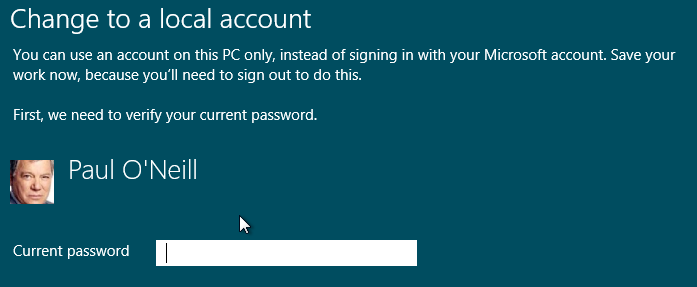
Well while this looks promising, the ability to turn my Live-linked account into a normal local account, it seems that the page can’t handle something about my password as it’s having none of it. Instead I’ll create a standard local account and then log into that, I reckon. Once done, I can still configure the email account to sync to my Hotmail address though the email tile no longer seems to show notifications.
12:04pm: Browsing the in-built apps
The default start menu gives you a few Metro apps up-front. We’ve got a bit mail tile that should (although no longer seems to) notify when there’s new email, a Messaging app that I am unable to test as it’s claiming I’m both offline and signed into Messenger at the same time and a calendar app that’s actually quite a neat little full-screen planner.
The weather app is location-aware and figured out I was in Edinburgh without any input, and once it’s been opened it updates its Start tile with the latest weather info. The finance app seems like a very US-centric placeholder and didn’t customise itself upon my location but presumably that’ll be expanded before it actually gets used for real. As with the weather app, once it’s been opened its tile updates with stock quotes.
Internet Explorer has two modes of operation – when started from the Desktop app it’s familiar IE and when started from the Start menu it’s a Metro-styled chromeless affair with bigger buttons and address bar regions for easier use with a touchscreen.
The Xbox Live app at the minute at least requires that you’re using a Microsoft account (i.e. that your Live account is linked to your machine login) rather than a local account which is an annoyance that will hopefully be resolved.
Windows Explorer opens on the Desktop, which is a visually jarring experience and I’d be hopeful of a Metro-styled cut-down Explorer for simpler file operations like copying the odd file or the occasional rename.
Time for more tea, and to have a look at the Store app.